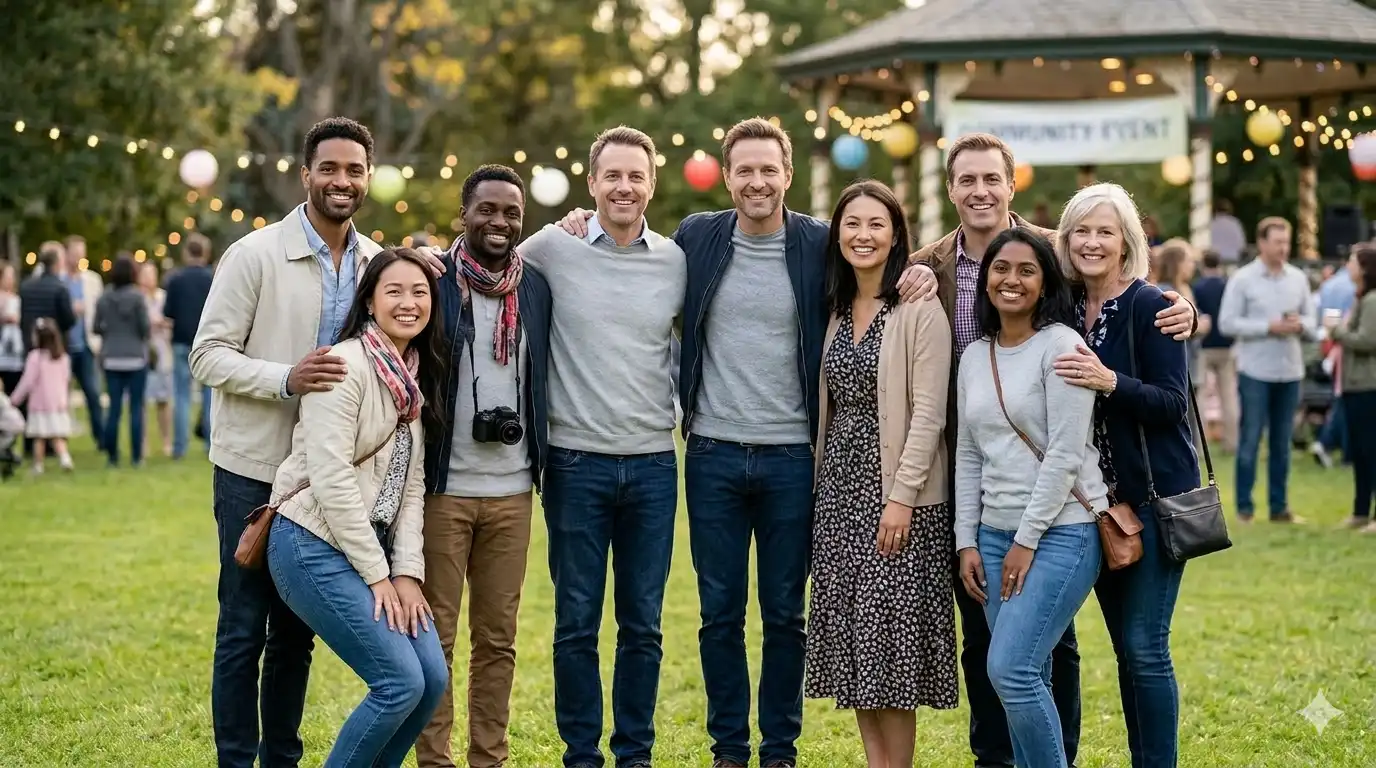
Target: remove only the leftmost male, keep all others unchanged.
A real two-pass workflow for removing one target from a group photo.
Target: remove only the leftmost male, keep all others unchanged.
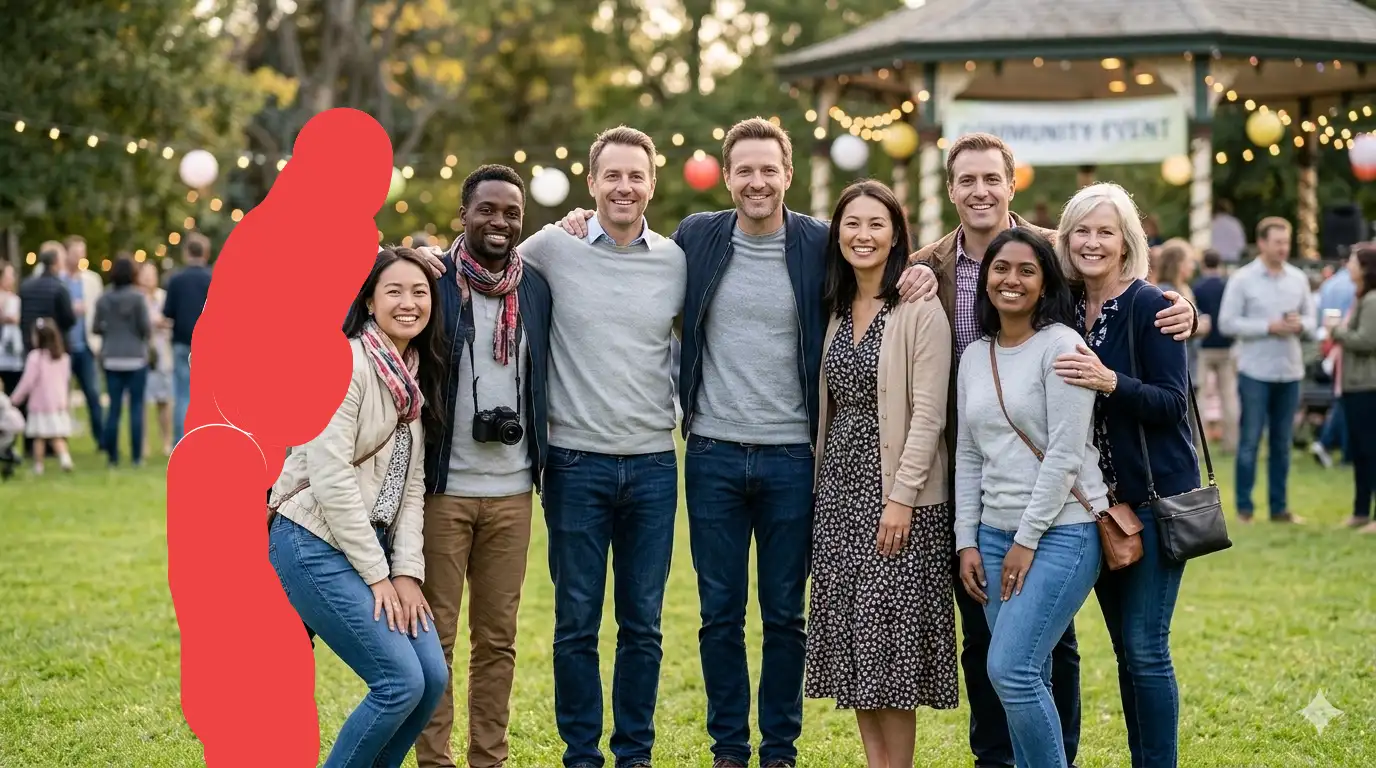
Key: fully cover the leftmost male. Minor overspill can be fixed in pass 2.
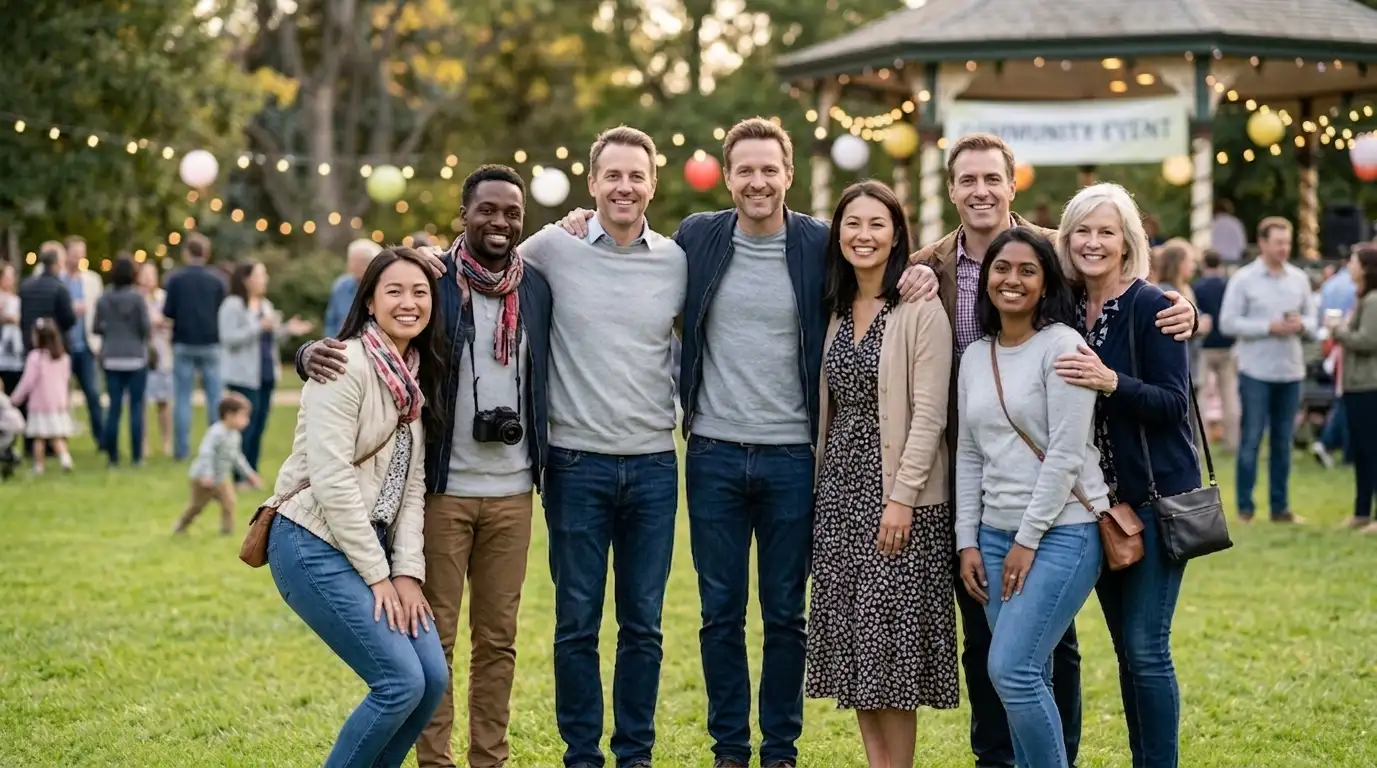
Issue: an extra hand remains on the left girl. Click “Not clean enough? Paint and regenerate” for pass 2.
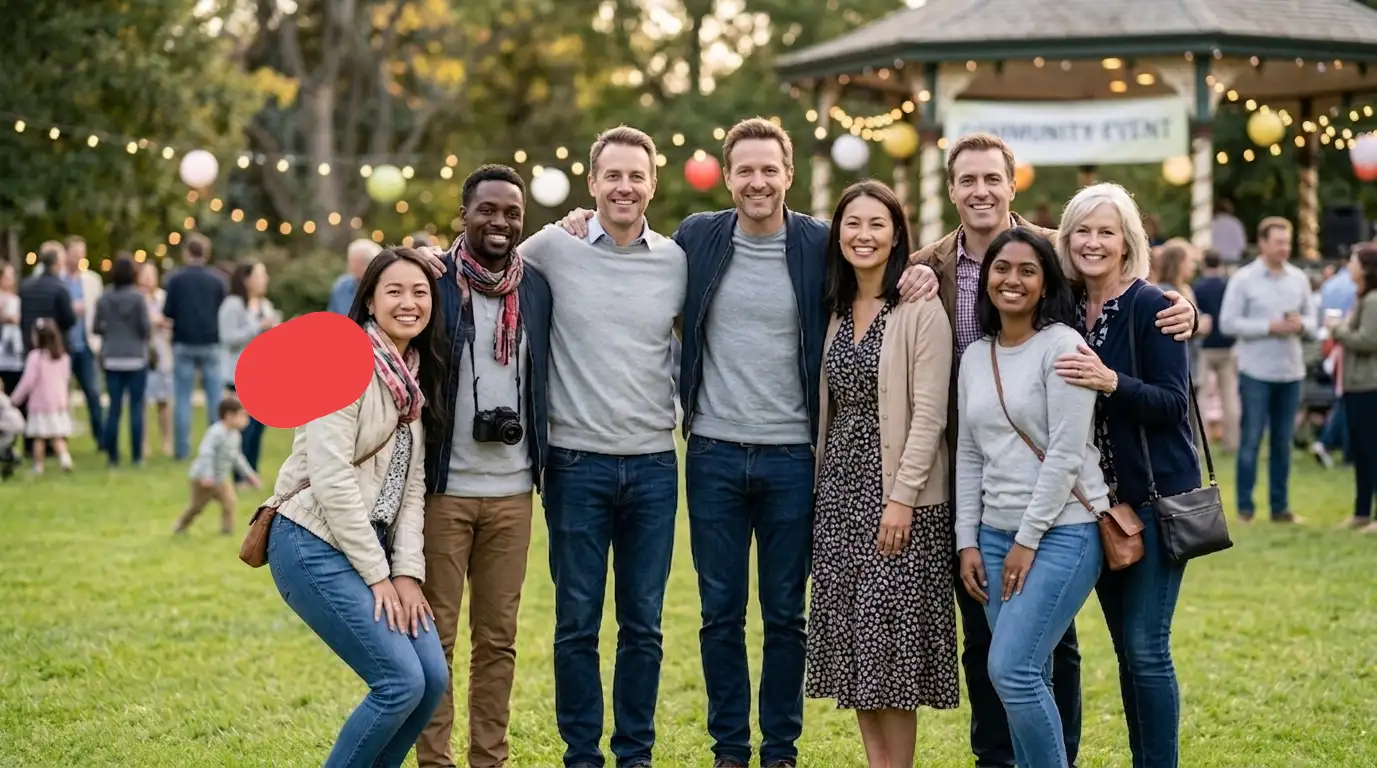
Mark only the residual hand and lightly tune prompt on top of the default prompt.
Suggested refined prompt:
移除标记/着色区域中的手。这个手是多余的,用逻辑上延伸场景的智能背景填充替换它们。确保填充区域无缝连接——没有模糊的伪影、污迹或明显的编辑痕迹。保持与照片其余部分相同的颗粒感、景深和光照,以获得自然、未经编辑的外观。仅移除与标记/着色区域重叠的人物。未标记的人物必须保持不变。不要删除、替换或修改任何未标记人物。
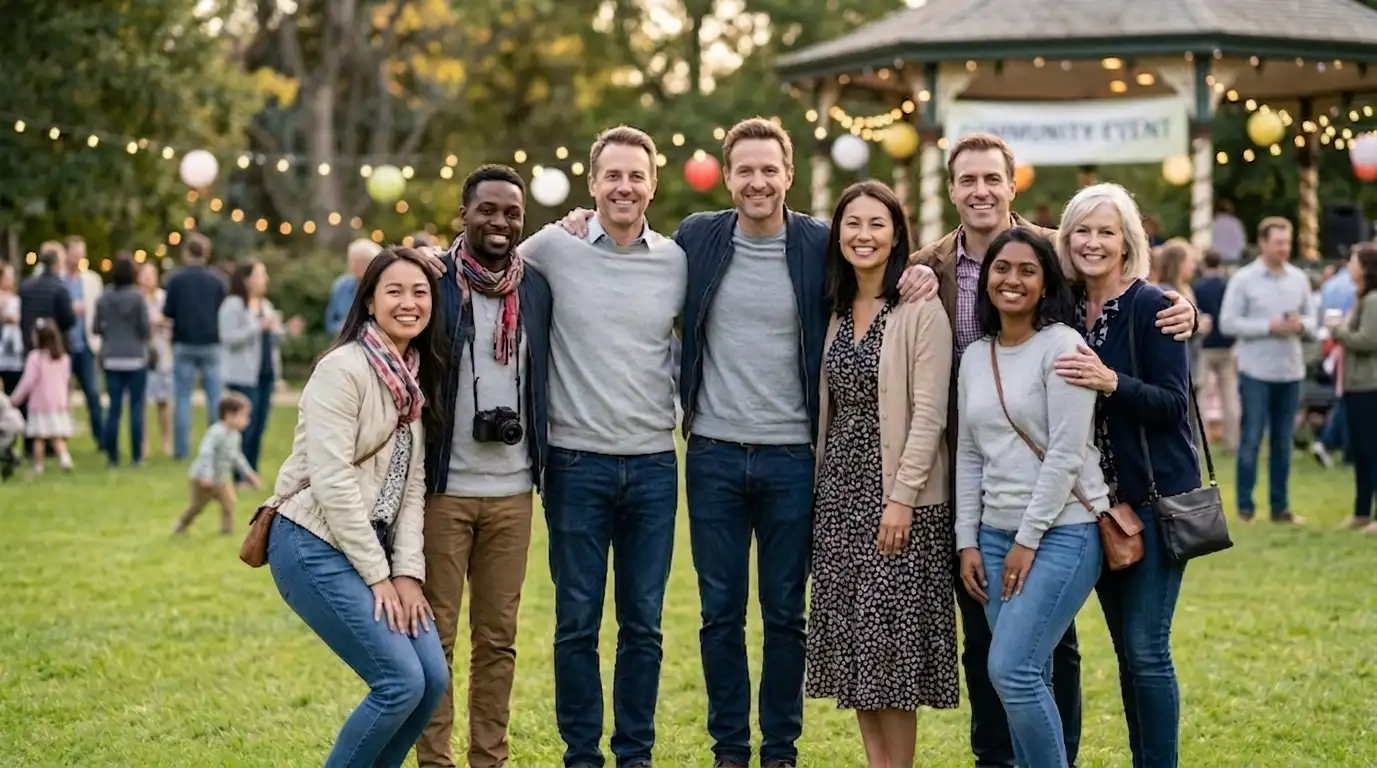
Result: extra hand removed, target deleted, others preserved naturally. This case took 2 passes.